Ask your ERP anything, in plain English
Atlys Joey connects AI to your company's ERP site. You ask a question the way you would ask a colleague, and the answer comes with figures read from your ERP, as you, a moment ago. Use it in JoeyAI Chat, your company's own chat page, or in the AI app you already use.
Works with any ERP. Ready for an instant demo on MYOB Acumatica and Acumatica; for another ERP, ask us.


What Joey is
Joey is run by Atlys and sits between an AI assistant and your ERP site. While the assistant works on your question, it asks Joey to look things up in your ERP, total them and explain them. Joey plugs into AI apps as a custom connector, the standard way they reach outside tools.
This guide shows Joey on MYOB Acumatica, so the buttons, screens and messages quoted here are MYOB's. On another ERP they carry that ERP's own names; everything else works the same way.
As you
You sign in with your own ERP login. Joey sees exactly what your ERP role lets you see, and nothing more.
You confirm every change
Joey reads. Where your company has write access switched on, it can also create and change records, but only after you confirm each one. It never deletes.
Live and quick
Answers come from your ERP itself, and the questions people ask most answer in about a second.
Your company only
Each company has its own Joey address. One connection reaches one ERP company.
Swipe sideways to see the whole picture.
- Answers in seconds, not reports in hours. "Who were our top 10 customers this financial year?" is one question instead of an export and a spreadsheet.
- Follow-ups in the same chat. The biggest customer, then their largest orders, then what the PDF on the largest one says.
- Everyone asks in their own words. Sales, accounts, purchasing and the warehouse ask the same system in plain language, and each person sees only what their own ERP login allows.
Two ways to use Joey
Joey comes in two ways. Your company chooses one for its Joey address with your Atlys team: JoeyAI Chat, Joey's own chat page, or your own AI app connected to Joey. Both read your ERP as you, with the same rights, the same speed and the same checks on every change. They differ in where you chat and who keeps the conversation.
| JoeyAI Chat | Your own AI app | |
|---|---|---|
| Where | Your company's chat page: your Joey address with /chat on the end | Claude, ChatGPT, Microsoft Copilot, Google Gemini, Cursor and other apps that take custom connectors |
| You need | Your ERP login with the API licence (below), nothing else | An AI app plan that allows custom connectors, and your ERP login with the API licence (below) |
| The AI | Comes with Joey, with a monthly allowance for your company | Your app's own, under your company's plan with that app |
| Your conversations | Kept by Joey, encrypted for you alone, and deleted when you sign out, and no chat is kept longer than 30 days | Kept by your AI app, as its settings and your company's plan say, until you delete them there |
| Files | Attach pictures, PDFs, Excel, Word, PowerPoint and text files; ask for charts and Excel, Word, PowerPoint or PDF files back. All deleted with your chats, from the AI service's store too | As your AI app allows, kept by your AI app |
| Changes in your ERP | On a card: you press Confirm or Cancel | You say yes in the chat |
JoeyAI Chat
JoeyAI Chat is your company's own chat page for Joey: your Joey address with /chat on the end, such as https://joey.atlystech.com.au/your-company/chat. Your Atlys team switches it on for your company and tells you. It works in any browser, and as an app on your phone.
- Sign in. Open the address and choose Sign in with MYOB. Your ERP's own page asks for your login, as always, and brings you back to the chat. Joey never sees your password.
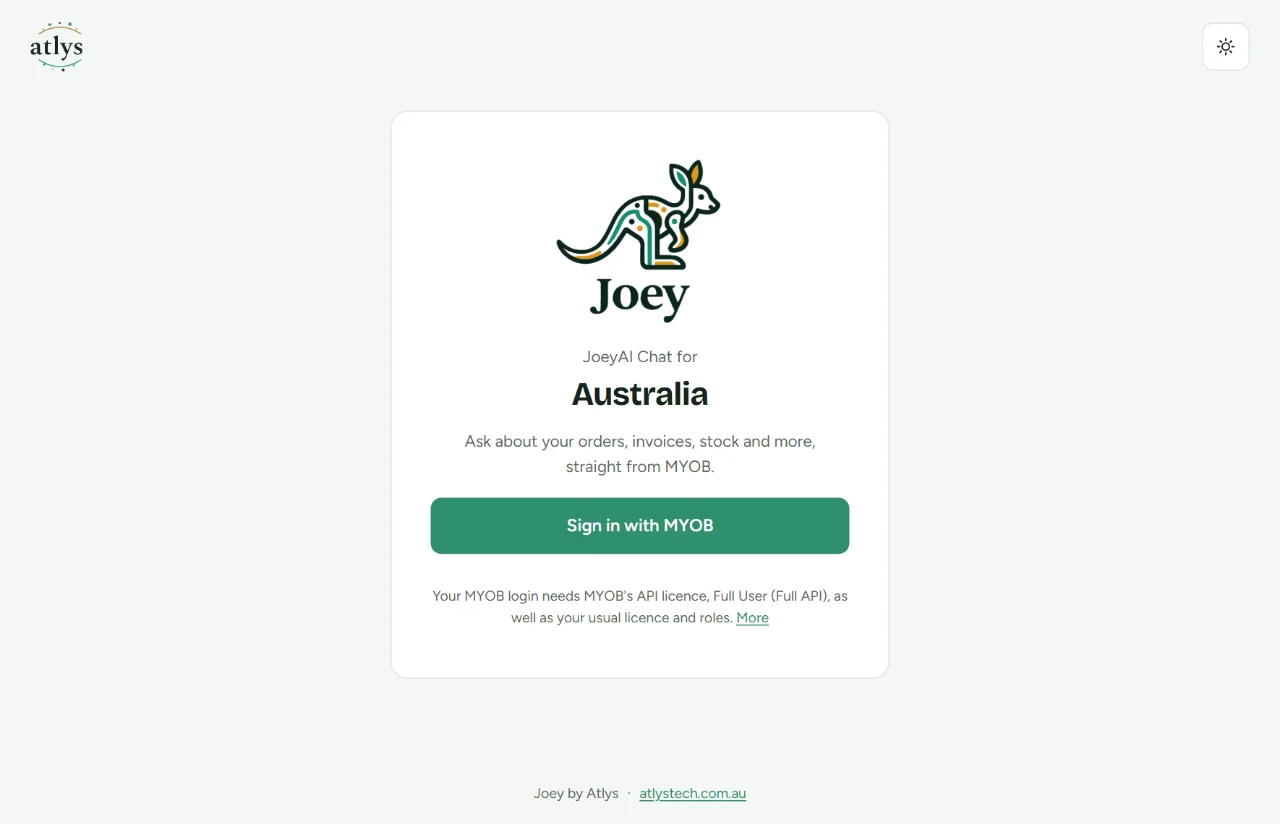
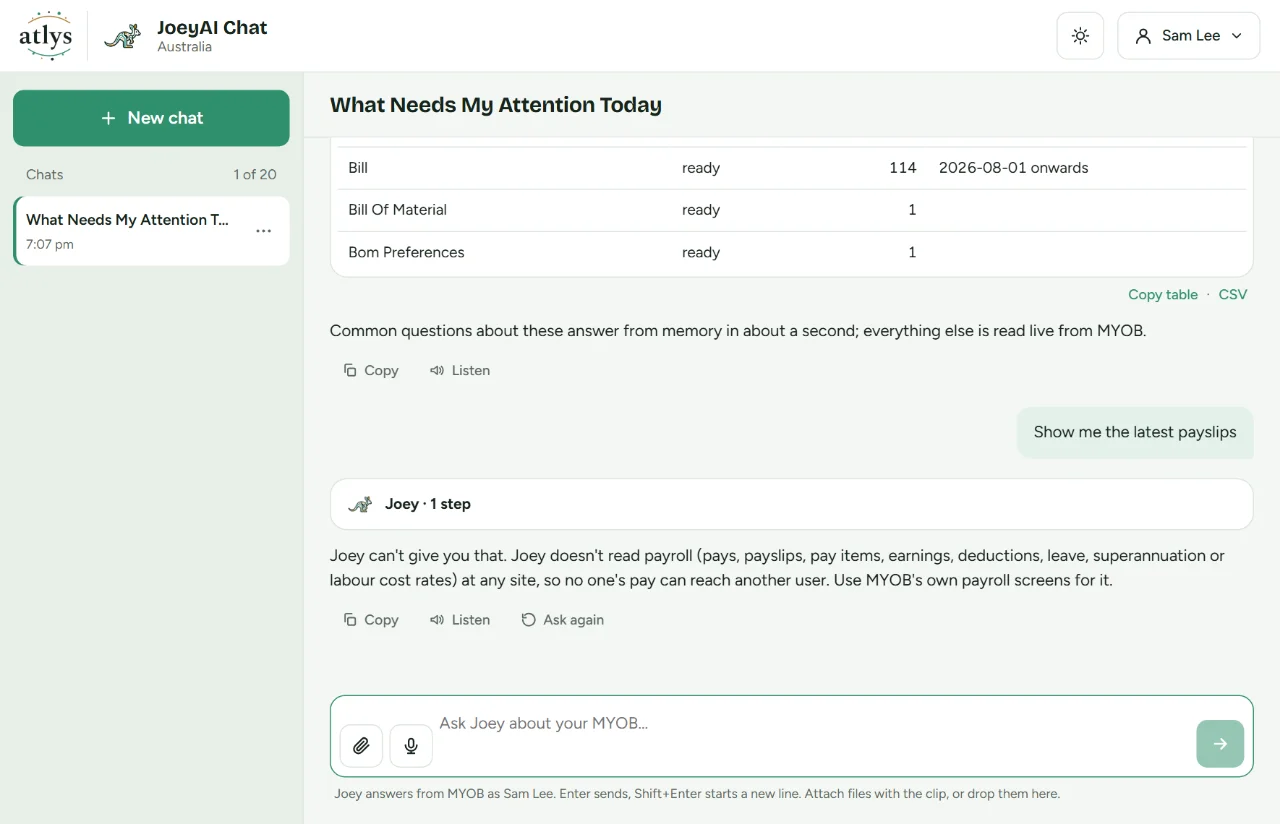
JoeyAI Chat's own page for your company. The ERP's sign-in follows, then you are in the chat. - Ask. Type in the box at the bottom, or pick a suggestion. Enter sends; Shift+Enter starts a new line. Joey's steps show as it works, each with what it looked up (for example Summary · Sales order, by status), then the answer. Tables have Copy table and CSV, and every answer has Copy.
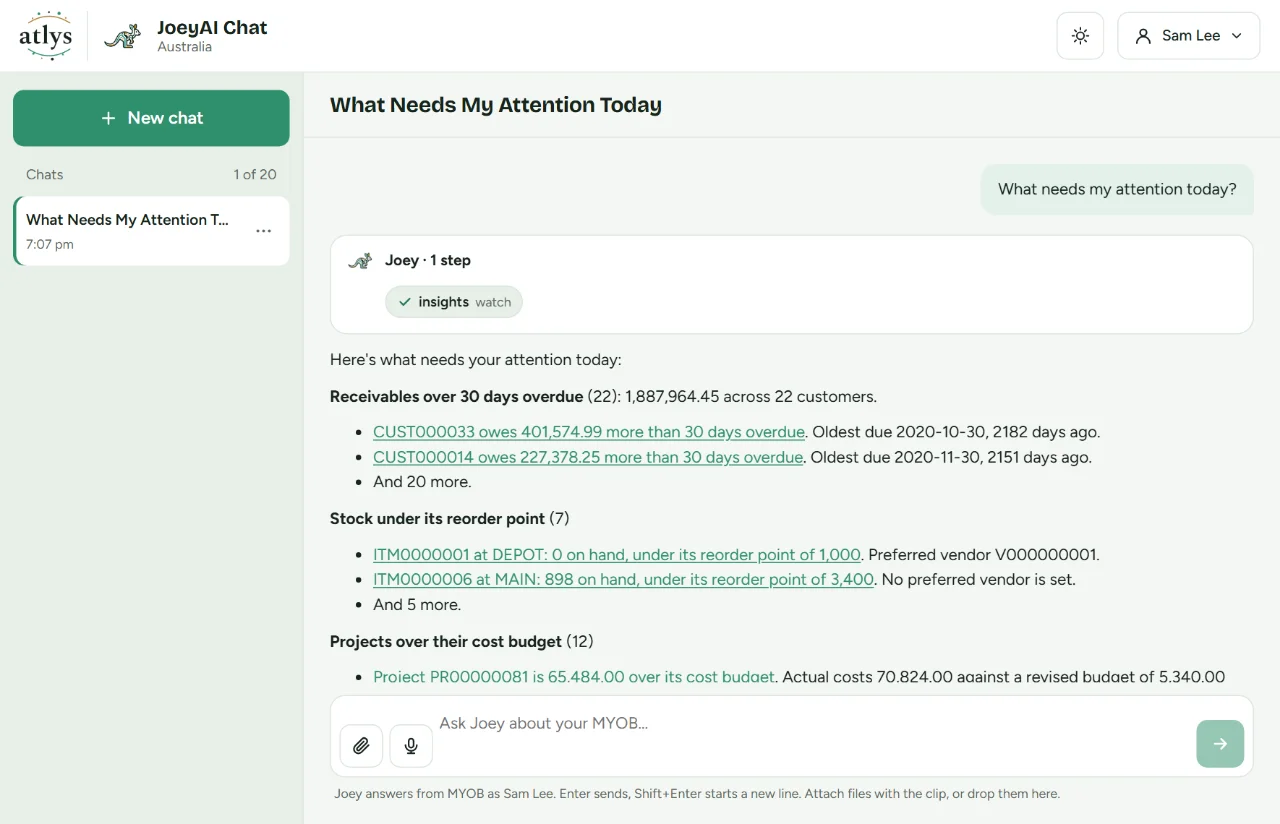
An answer in JoeyAI Chat: Joey's step with what it looked up, then a table to copy or save as CSV. - Keep going. Ask follow-ups in the same chat. The pencil beside a question edits it; Ask again under the last answer asks it once more. New chat starts another; you can keep up to 20, each named from its first answer. From a chat's ⋯ menu you can rename it, export it as Markdown, ask Joey for a Word or PDF copy of it (made like any file you ask for) or delete it.
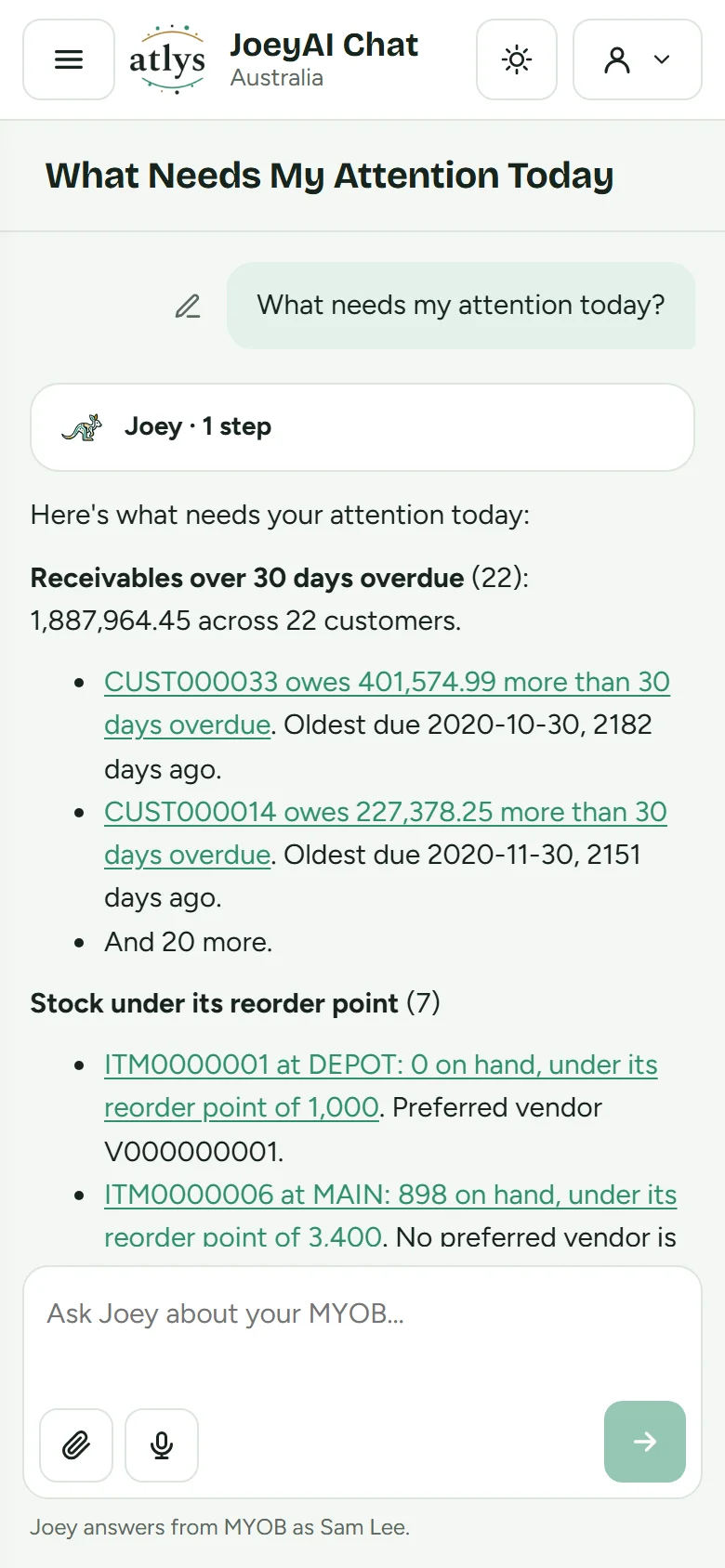
You can also attach pictures, PDFs and Office files, ask for charts and Excel, Word, PowerPoint or PDF files back, speak your question, and use JoeyAI Chat on your phone as the Atlys JoeyAI app, added from your phone's browser.
Each person's ERP login needs your ERP's API licence as well as their usual licence and roles (in MYOB Acumatica: Full User (Full API), set by your ERP administrator on the Users screen).
Joey in your own AI app
You need an AI app that can add a custom connector with its own sign-in: Claude, ChatGPT, Microsoft Copilot, Google Gemini, Cursor and others follow the standard; most need a paid or business plan, and on a company plan an administrator may add it for everyone first. You also need your ERP login with the API licence and your company's Joey address from your Atlys team, such as https://joey.atlystech.com.au/your-company (nothing after the company's name). Open the address in a browser to check it: Joey says it is ready to be added as a connector.
You connect once in the AI app; after that Joey is there in every chat, and in most apps on your phone too.
- Add Joey. In the app's settings find Connectors, Integrations, Apps or MCP servers, add a custom connector named Atlys Joey and paste your Joey address as the server address. Leave any advanced settings (client ID, secret, headers) empty: Joey has its own sign-in.
An illustration: each app's own screen looks a little different and changes over time. - Connect. Choose Connect (or Sign in) next to Atlys Joey. Joey's own page opens, naming the app and your ERP site. Check the site is your company's and choose Continue to MYOB sign-in.
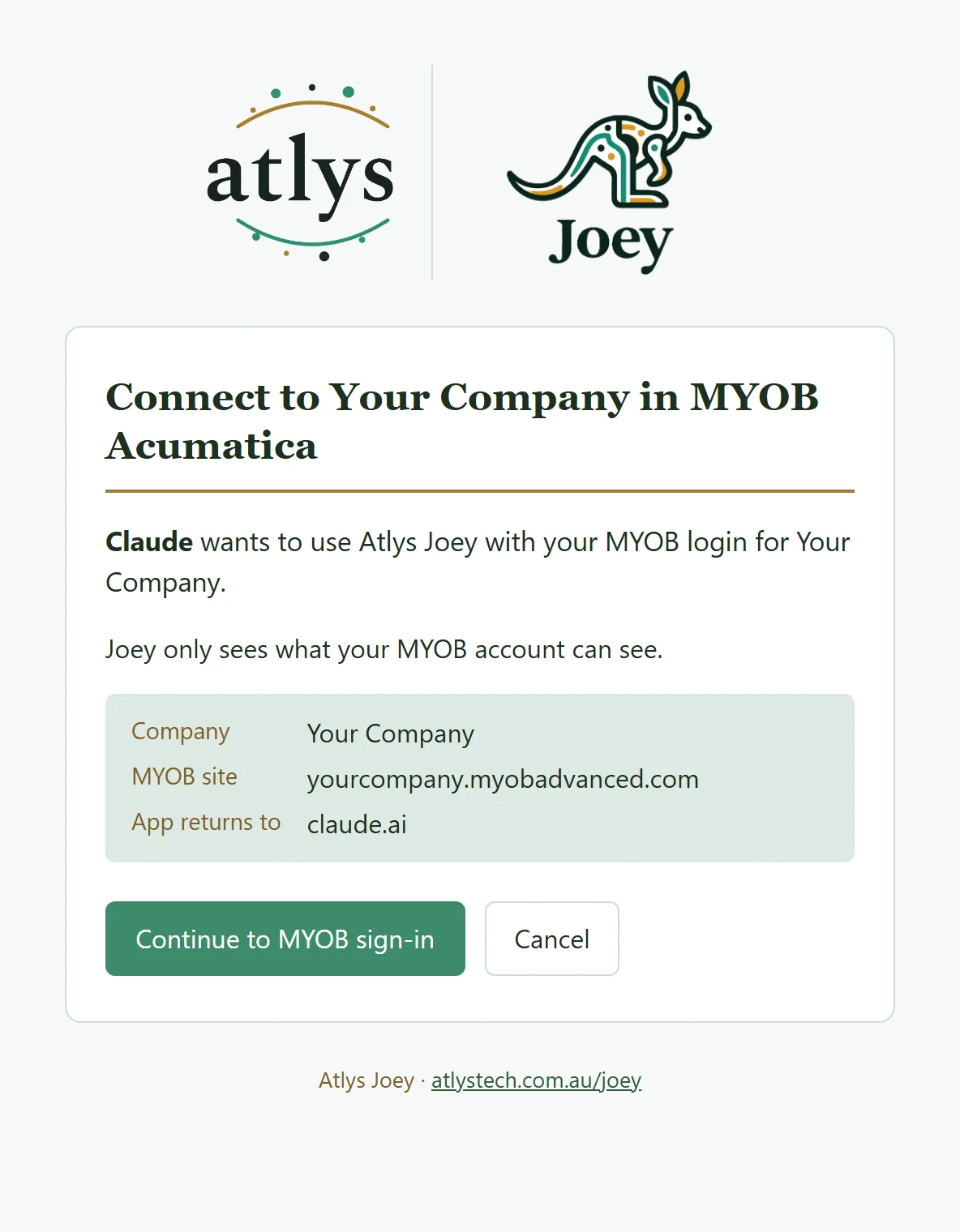
Joey's connect page. It names the app and the ERP site, and says Joey only sees what your ERP account can see. - Sign in to your ERP on your site's own sign-in page, as always. Your password goes into your ERP, never into Joey or your AI app.
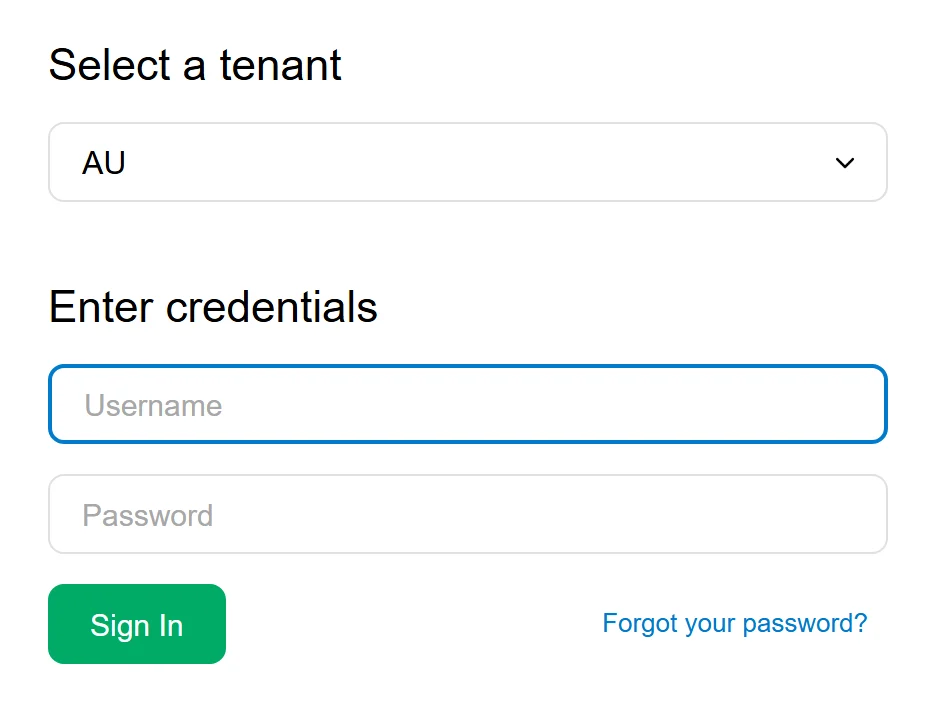
Your ERP's own sign-in page, here MYOB Acumatica. Your company's page may carry your company's own look. - Allow the access. Your ERP lists what Atlys Joey asks for: who you are, the ERP's web services, and offline access so the connection lasts between chats. Choose Yes, Allow.
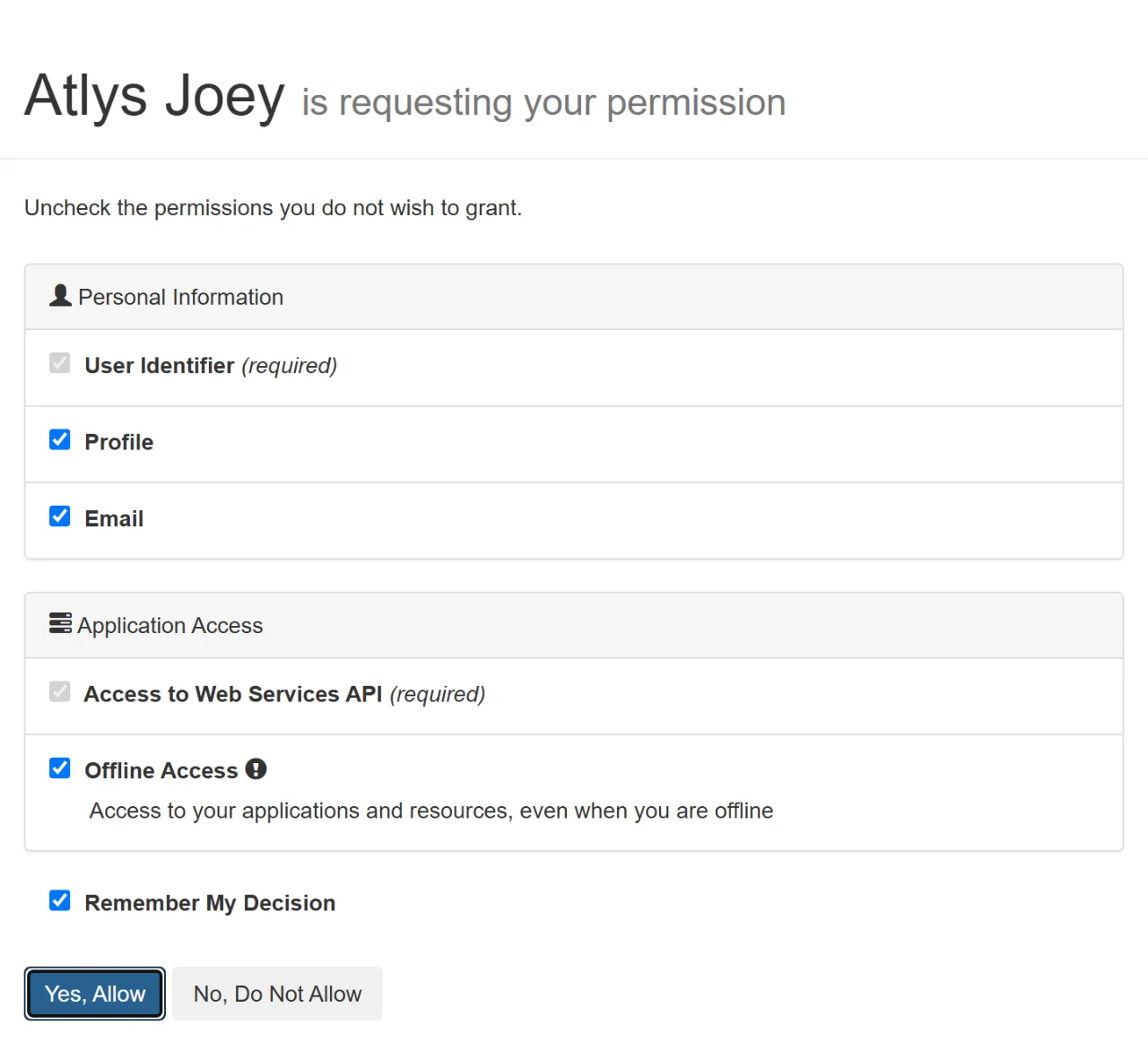
Your ERP asks you to allow Atlys Joey. - Back to your AI app. Joey finishes the sign-in (you see Joey hop for a few seconds) and the app shows Atlys Joey as connected.
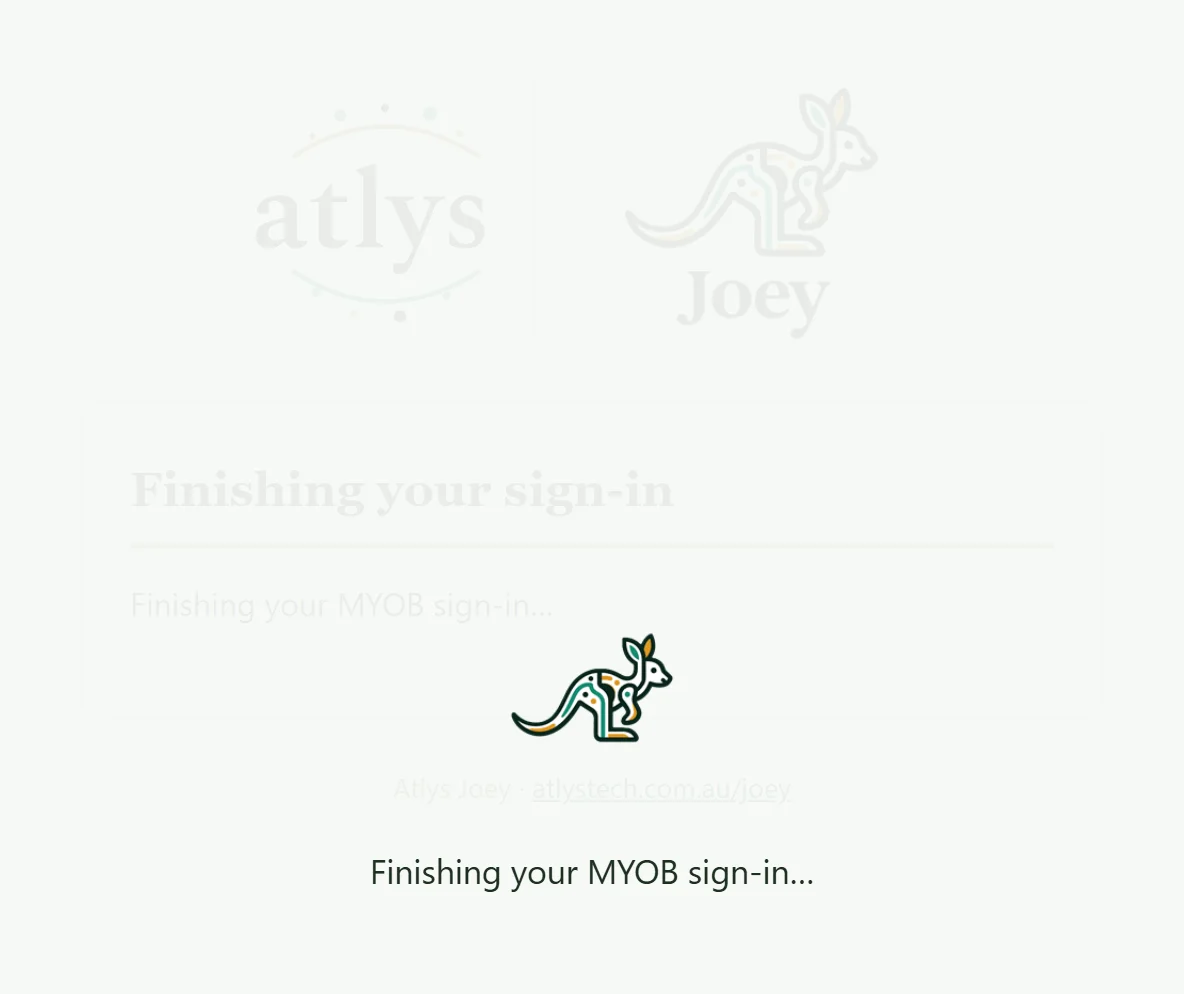
Joey finishing your ERP sign-in before it returns you to your AI app.
To check it worked, start a new chat and ask: "Which ERP company am I connected to through Joey?"
Where to add it in each app
Any app that can add a custom connector with sign-in (OAuth 2.1) can use Joey. Menu names change as the apps are updated; the steps below are their makers' own, as of writing.
| App | Where to add Joey | Then |
|---|---|---|
| Claude (web, desktop and mobile; Pro, Max, Team or Enterprise) | Settings › Connectors › Add custom connector: name it Atlys Joey, paste the address. On Team and Enterprise plans an owner adds it for the organisation. | Connect next to Atlys Joey; once connected on the web or desktop it is in the mobile app too. |
| ChatGPT (Plus, Pro, Business, Enterprise or Edu) and Codex | In ChatGPT on the web: Plugins in the left sidebar › Add › Add custom MCP server. Name it Atlys Joey, put your Joey address in Connection (Server URL) and leave Authentication as OAuth, which ChatGPT picks itself; tick I understand and want to continue, then Create as a plugin. In the desktop app: Settings › Plugins › Add › Add MCP server, type Streamable HTTP, the address, then Save. Older versions call this Apps & Connectors with Developer mode on; on a company workspace an administrator may add it for everyone. In the Codex command line: codex mcp add atlys-joey --url https://joey.atlystech.com.au/your-company, then codex mcp login atlys-joey. | Choose Connect Atlys Joey and sign in with your usual ERP login. To sign in again later: Plugins › Atlys Joey › Connect (also under Manage). |
| Microsoft Copilot (Microsoft 365 Copilot; GitHub Copilot in Visual Studio Code) | Microsoft 365 Copilot takes custom connectors through an agent your administrator builds in Copilot Studio (add an MCP server tool with the address and its sign-in) and shares with you. In Visual Studio Code: MCP: Add Server from the command palette, choose HTTP, paste the address. | Open the shared agent in Copilot, or in Visual Studio Code allow the sign-in it offers for Atlys Joey. |
| Google Gemini (the Gemini command line; the Gemini app where it offers custom connectors) | In the Gemini command line: gemini mcp add --transport http atlys-joey https://joey.atlystech.com.au/your-company. | Run /mcp auth atlys-joey (or sign in when prompted) and the same Joey and ERP pages open. |
| Cursor (and other code editors that take custom connectors) | Settings › MCP › Add new MCP server: name it, choose a remote (URL) server, paste the address. | Choose Needs login / Sign in on Atlys Joey in the list. |
| Claude Code (terminal) | claude mcp add --transport http atlys-joey https://joey.atlystech.com.au/your-company | Type /mcp, choose atlys-joey and Authenticate. |
In every app the browser then shows the same three pages: Joey's connect page, the ERP's sign-in and the ERP's allow page.
Questions to try
Sales
"How many sales orders did we take last month, by status?"
"Show our sales by month for the last 12 months. Which was the best month?"
Customers and receivables
"Which 10 customers owe us the most right now?"
"How much is more than 60 days overdue?"
"Which customers bought last year but nothing this year?"
Purchasing
"How many purchase orders are open, and with which vendors?"
"What did we order from suppliers last month, per currency?"
Inventory
"How much stock do we hold in each warehouse?"
"Which items sold the most units in August?"
Finance
"What were our bank account balances at the end of last month?"
"How much did customers pay us in August?"
Reports, month end and compliance
"Show the P&L against budget for March, by branch."
"Are we ready to close last month?"
"Work out our BAS figures for the last quarter." (for review; your ERP's tax report is what you lodge)
"What goes on this year's TPAR?"
Stock and sales performance
"What stock hasn't sold in six months?"
"Which items make us the most margin?"
"How many of our quotes become orders?"
"What's our DSO?"
Documents
"Look up sales order SO012345 and tell me its status and total."
"Does it have a PDF attached? Summarise it in two lines."
Charts, files and ERP links
"Chart our sales by month this year."
"Give me an Excel file of last quarter's invoices."
"Open sales order SO012345 in MYOB" or "Print it".
Not sure where to start? Ask "What can I ask Joey?" or "Starter questions for accounts payable" (or sales, warehouse, management, a new starter, construction and the like). In an AI app that lists prompts, Joey's starter questions are there too. In JoeyAI Chat they are on the welcome screen, by role and then by industry (and under Starter questions in the menu with your name). You see only questions your own ERP login can answer.
Your ERP may also have generic inquiries (saved enquiry screens). Ask "Which inquiries can I use through Joey?" and then "Run the one about open orders for this week."
Your data and your rights
The short version, what Joey keeps and for how long, and who can see what are on one page: How Atlys Joey handles your data.
- Your ERP decides. Every read is made as you, with your own ERP login, so the ERP's roles, restriction groups and screen rights apply. If your ERP refuses you something, Joey refuses it too, by every route.
- Nothing changes without you. Each change waits for you to confirm it; your ERP records you as the person who made it. Joey keeps a record of what kind of change was made and when, never the values.
- What Joey keeps: a private, encrypted copy of your recent data, for you alone while you're signed in (signing out of Joey or your ERP login ending, by default 30 days after you signed in, deletes it at once, and losing your ERP access deletes it within a day; Joey reminds you from 5 days before your sign-in ends) and, in JoeyAI Chat, your chats and files, encrypted for you alone and deleted when you sign out, files from the AI service's store too, and no chat is kept longer than 30 days. The AI's sandbox, where it works on files and charts, has no internet and expires within 30 days of being made. Joey's logs never hold names, amounts or records.
- Files you attach for your ERP: JoeyAI Chat keeps its own encrypted copy of each PDF or picture you attach (up to 10 MB), so you can attach it to a record in your ERP. It is deleted with its question or chat, like the rest.
- In your own AI app, the conversation is kept by that app, under its settings and your company's plan with it, until you delete it there.
- Keys stay with Joey. Your ERP key never leaves Joey; your AI app holds only a key to Joey, which Joey can end at any time.
- One company per connection. Joey can't switch to another company or another person's data.
- Payroll stays in your ERP. Joey never reads pays, payslips, leave or superannuation, for anyone, so no one's pay can reach another person through Joey.
- Bank and card details stay in your ERP too. Bank account numbers, BSBs, payment instructions and card numbers are never passed to your AI assistant. Your company's administrator can allow them for chosen people, who then see only what your ERP lets them see.
Questions people ask
Can a colleague see my questions or my data?
No. Each person signs in with their own ERP login and gets their own private copy of their data and, in JoeyAI Chat, their own chats, encrypted for them alone. Joey's records of questions hold no values and are seen only by the Atlys team.
Does the AI learn my company's figures?
Joey hands the AI the answer to your question, like a report you asked for. In your own AI app, what the app keeps of your chats is set by its plan and settings (a business plan usually keeps chats out of training). In JoeyAI Chat, Joey holds the chat and deletes it as above. Joey itself keeps no figures outside the private, encrypted copy of your data, and nothing it learns from use holds names, amounts or records.
Does it work on my phone?
Yes. JoeyAI Chat works as an app on your phone, Atlys JoeyAI, added to your home screen from its browser, or simply in the browser. In your own AI app it depends on the app: in Claude, for example, once connected on the web or desktop Atlys Joey is in the mobile app too.
Who do I ask for help?
Your Atlys team: they set up your company's Joey and can see how it is running (never your data).
The full user guide
This page covers getting started. The full user guide has everything else: Joey Watch and forecasts, the bill and document checks, help with your ERP itself, write access and confirming changes, rules and digests, speed, signing out, and what to do when something goes wrong.
Using Joey? Ask it for the user guide, or choose User guide in JoeyAI Chat.
View the full user guide ↗ Edition Nov 2026 · opens in a new tab
